A clear request
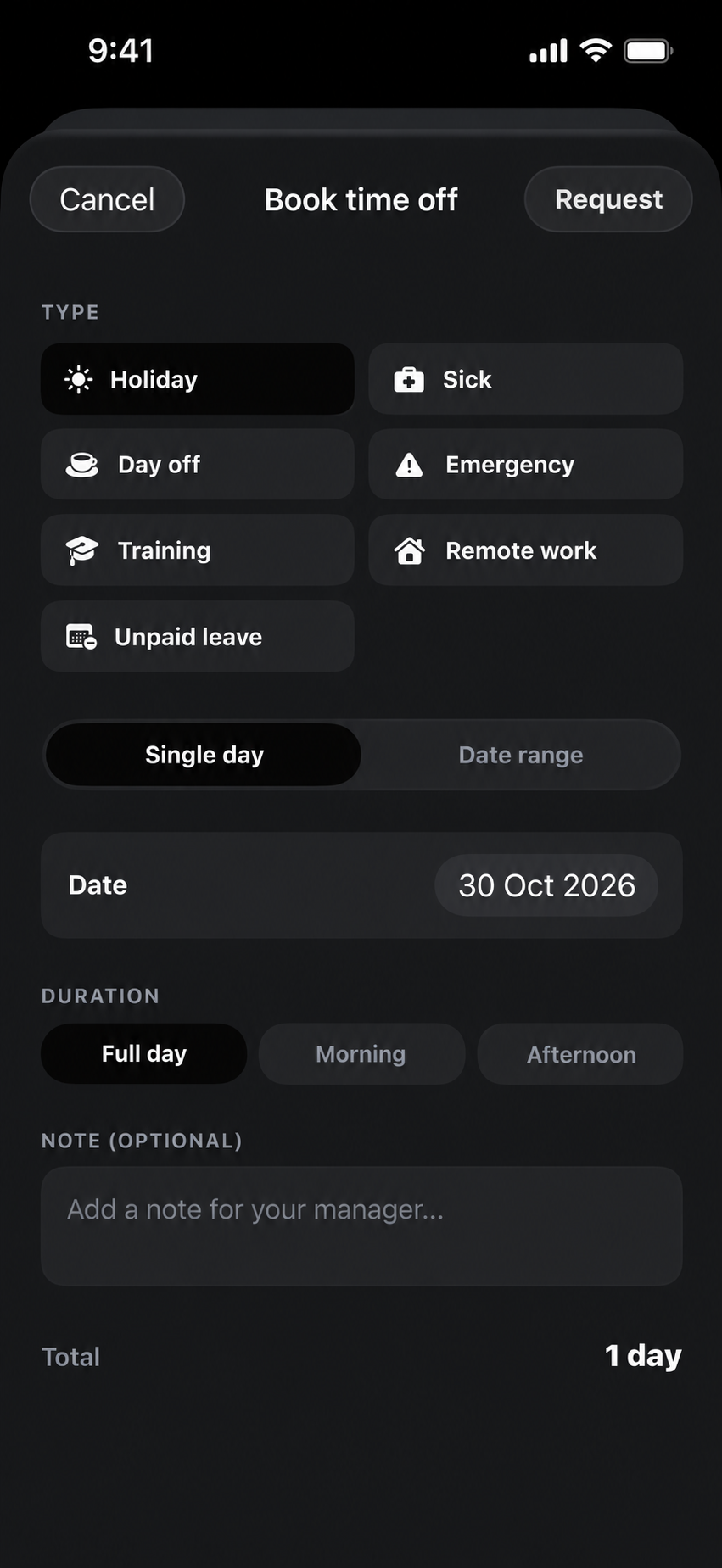
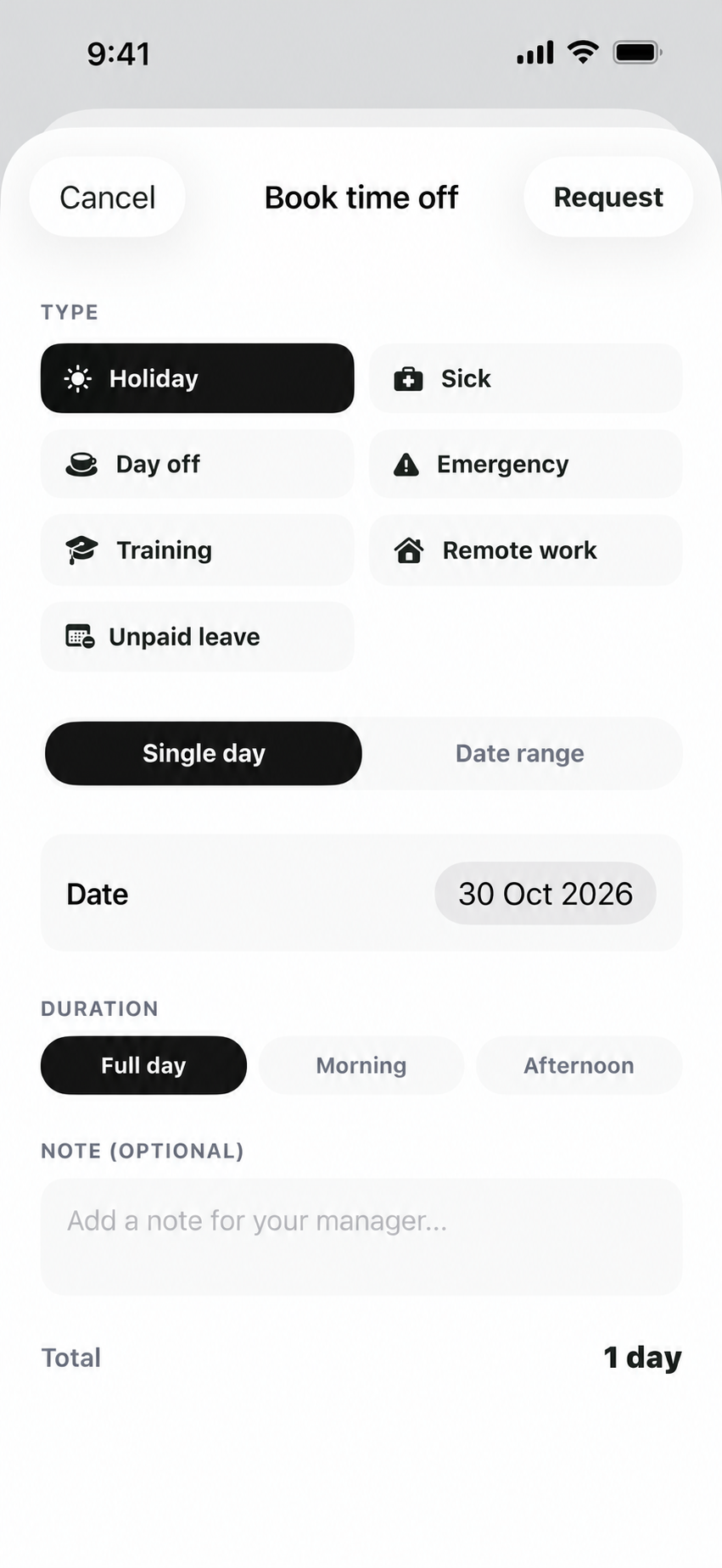
Employees select a leave type, choose dates and duration, and include an optional note for the manager.
TIME AWAY, IN THE SAME WORKSPACE
PAX gives employees a clear way to request time off and gives managers the details to review it. Choose a leave type, set the dates and duration, and add a note—all in one simple request.
Requests and their decisions stay together, so employees can see where things stand and managers can review the information they need without losing the context in a message thread.
Employees select a leave type, choose dates and duration, and include an optional note for the manager.
Managers can review the submitted request with its dates, duration and note in one place.
Request status remains visible so employees can follow its progress.
Leave requests sit alongside the other people and operational workflows in PAX.
Select the type of time away that applies to the request.
Enter the requested dates and whether the request covers a full or partial day.
Include any context that will help the manager review the request.
Check the request status as it moves through review.
A leave type, dates, duration and an optional note.
Yes. The request status is available in the leave workflow.
No. Requests are submitted for review; the manager is responsible for the decision.