Skip to content
PAX · YOUR TEAM, IN SYNC

A better working day starts with one clear view. See who’s on shift, what needs attention, and how the day is moving.

One shared workspace. A clearer day for everyone.

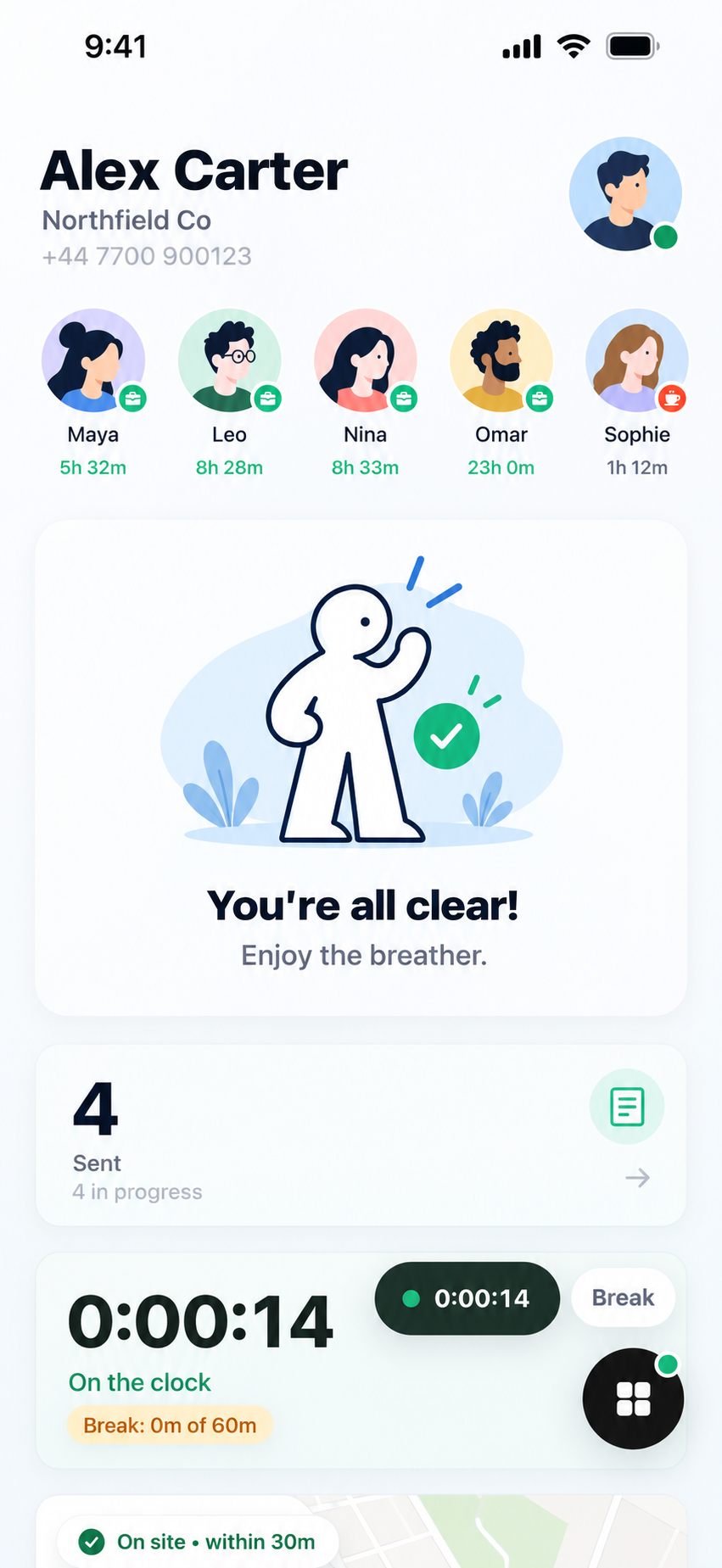
PAX team dashboard in light mode, showing attendance and live clock information
ONE WORKING DAY · SIX MOMENTS

From “good morning”
to “see you tomorrow.”

Follow Alex through a day in PAX. Each step connects to the next, so people can focus on the work in front of them.

02

CLOCK IN · ATTENDANCE

Start the shift with a tap.

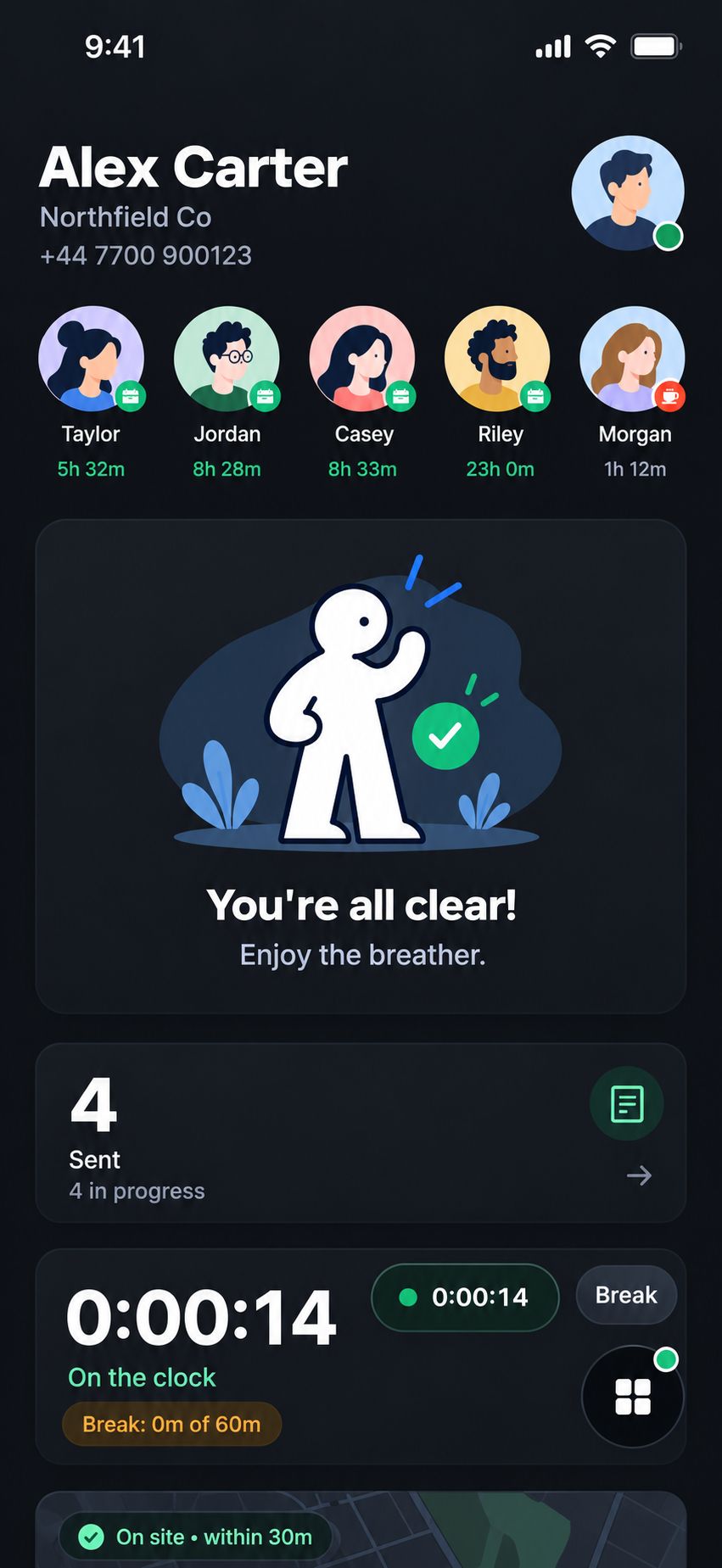
Clock in when the shift begins, see your current status, take a break when you need one, and clock out when the work is done. Your shift events stay together in a simple attendance history.

  • Clock in and out
  • Start and end breaks
  • Review shift history
Explore clock in
PAX Clock In screen showing the employee's shift controls and attendance information
03

TASKS · ASSIGNED AND TRACKED

Every task, clear at a glance.

Alex can see what’s in progress, what’s due next and what’s already complete. Each task shows who it came from, so the team can keep work moving and know what still needs attention.

Explore tasks
PAX Work screen showing assigned, in-progress and completed tasks
04PAX LEAVE · REQUESTS AND PLANNING

Time away,
well planned.

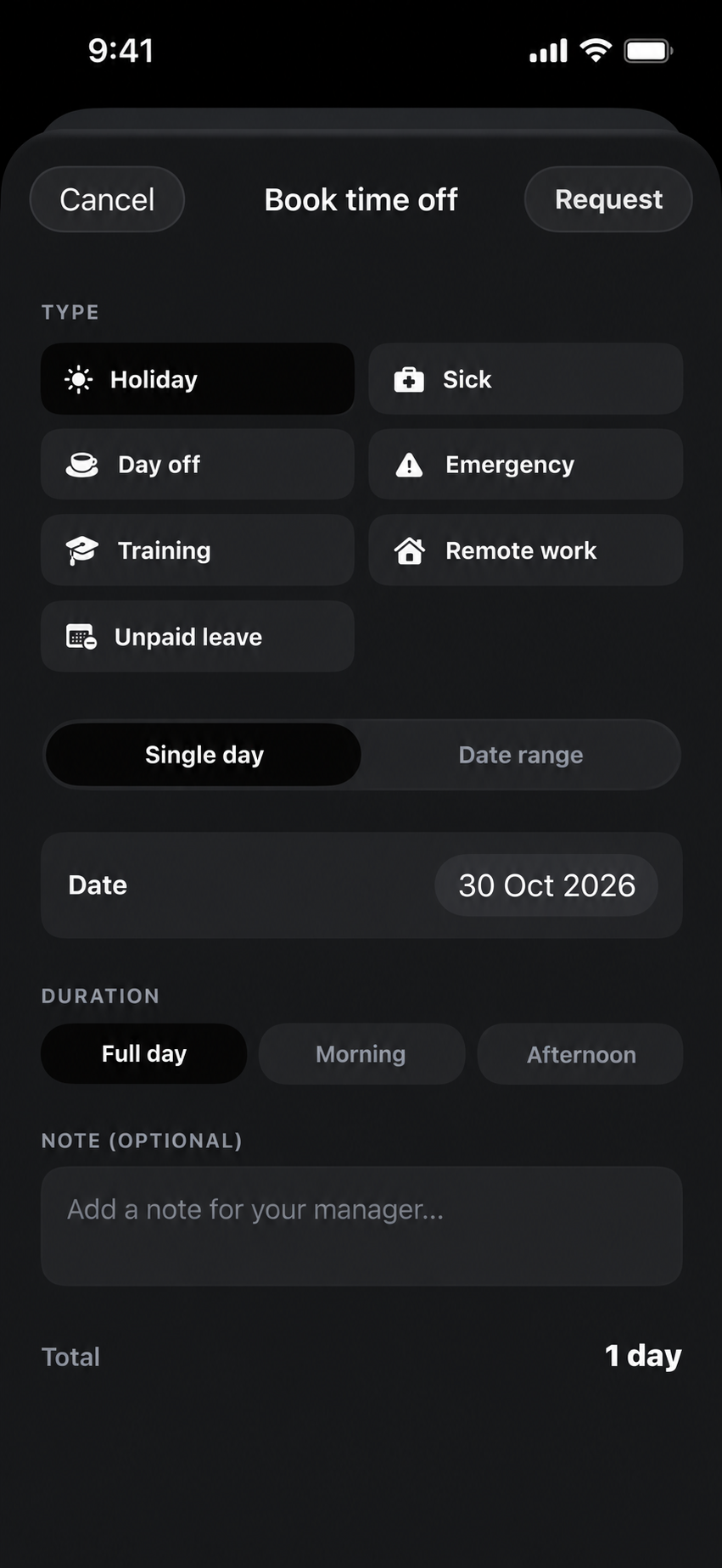
PAX gives employees a clear way to request time off and gives managers the details to review it. Choose a leave type, set the dates and duration, and add a note—all in one simple request.

  • Make a requestChoose the leave type, dates and duration
  • Add the contextInclude a note for the manager reviewing it
  • Know where it standsKeep submitted and approved time clear
PAX leave request screen showing leave type, dates, duration, and an optional note for a manager
05

PAX KNOWLEDGE · POLICIES AND SIGN-OFFS

Know the standard. Show it’s understood.

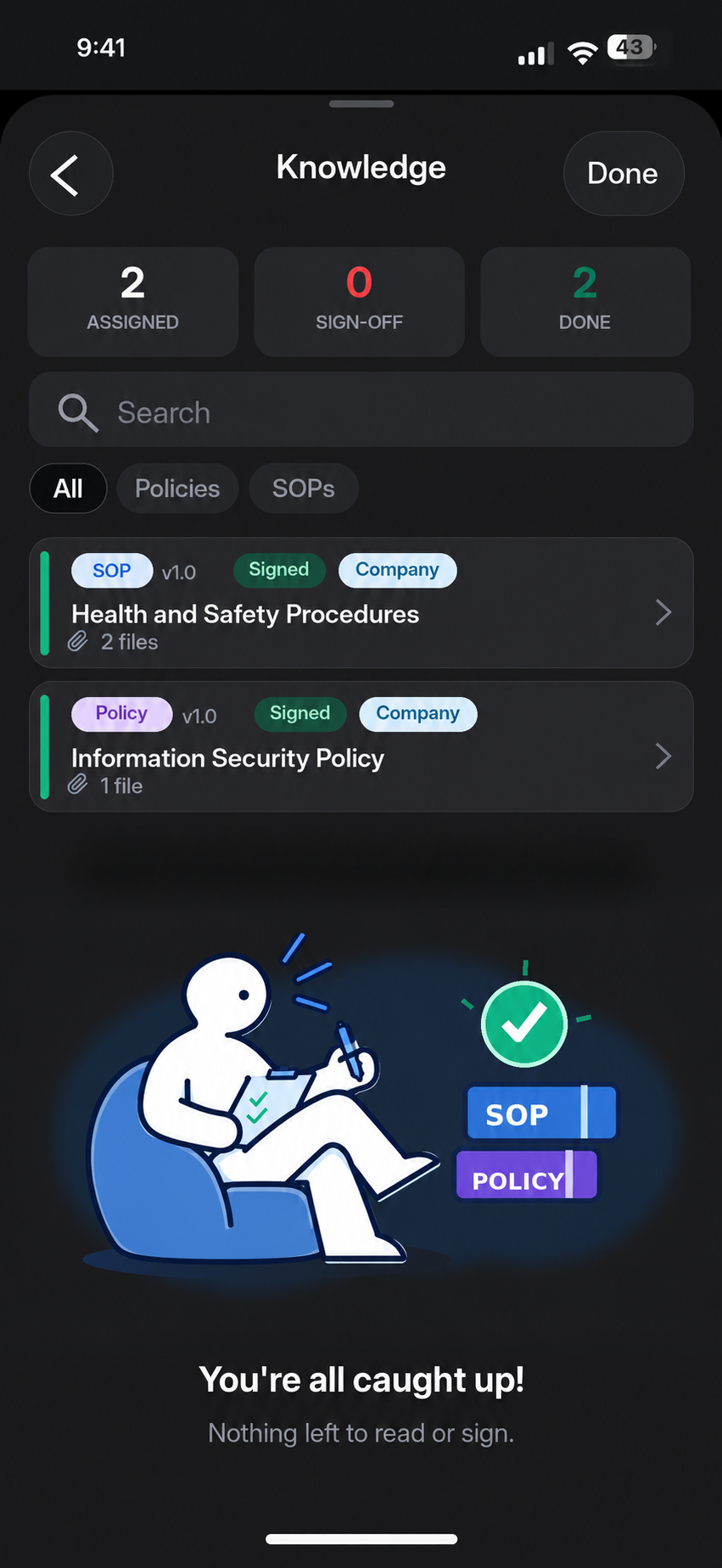
Keep policies and procedures easy to find, assign important reading, and see who has completed it. PAX brings everyday guidance and required sign-offs into the same place your team already works.

  • One clear libraryPolicies and procedures in one place
  • Assigned sign-offsKnow which reading needs acknowledgement
  • Visible progressSee assigned, sign-off and completed items
Explore knowledge
PAX Knowledge screen showing assigned policies, SOPs and sign-off progress
06

END OF DAY · MOOD AND REFLECTION

Every shift deserves a check-in.

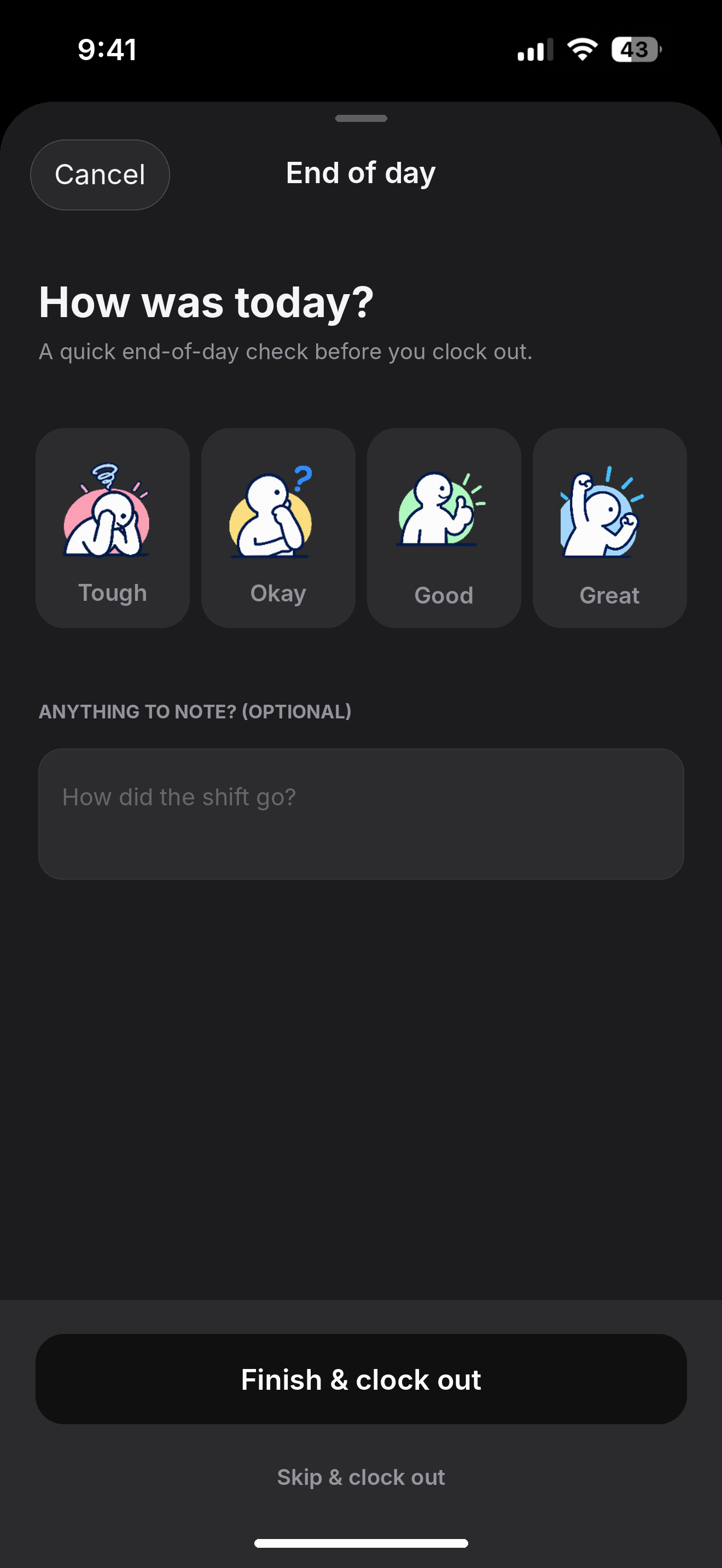
Before clocking out, Alex chooses a mood to share how the shift felt and can add an optional note. A small moment of reflection gives the day a proper close—and the team a little more context for tomorrow.

  • Choose a moodTough, okay, good or great
  • Add a noteShare optional context from the shift
  • Close the shiftFinish and clock out in one flow

See you tomorrow.

PAX End of Day screen with four mood characters, an optional shift note, and finish and clock out controls

Common questions.

How does my team get started?

Create your organisation on the web. Invite your people by phone number. They sign in and their tasks are waiting. Most teams are running within an hour.

Do I need to be technical?

No. If you can send a message, you can run PAX. There is no IT setup, no passwords, no app store required for your team.

What if I have multiple locations?

PAX is built for multi-site operations. Each location has its own workspace. You see all of them from one dashboard.

How does this replace what I'm doing now?

PAX replaces WhatsApp task management, paper checklists, verbal briefings and spreadsheet rotas. One system. One record. Everything in one place.

The last system
your business needs.

PAX — A better working day, together